5-Note Range
FreeRead intervals within a five-note span.
Builds: confidence in a small, manageable range.
Teaching tip
Start here with a new reader. If they guess, check whether they can identify the starting note before adding wider intervals.
 Interval Hero
How to use Interval Hero with your piano students, from the first lesson onwards.
One join code brings them onto your roster.
Game Mode guides them. The mic checks playing.
Review activity and first-try scores together.
Set things up together in a lesson, so home practice feels familiar.
Request a signup code, register as a Teacher, and wait for approval.
You land on My Students, your dashboard. A screenshot guide walks you through it the first time; reopen it any time with 📖 How to use Interval Hero.
Complete all 7 Game Mode levels on your own account first — every level is unlocked for teachers — so you know what each step asks before a student hits it.
Your six-character code sits on the dashboard. Give it to the student’s parent or responsible adult.
On the sign-up page, choose Student and enter the join code. One account per student.
Start free, or grant a Pro seat — Teacher Pro includes 3 seats, more available anytime.
For Play the Note, allow microphone access and try a few notes near the piano before practising at home.
Tell your student: “Open Game Mode and keep going.” Its 30 sub-levels introduce one small addition at a time. Passing each one opens the next.
Read within a five-note span.
Follow wider intervals from note to note.
Find your grand-staff landmarks.
From the nearest guide note, count to the note.
Read the five-note range against a timer.
Read it, then play it on your piano.
Recognise a whole chord shape.
Levels 1–3 are free, with a 40-question daily allowance outside Game Mode (Game Mode itself is exempt).
Pro removes the daily cap and unlocks Levels 4–7 as progression allows. Teacher accounts have all seven levels open regardless of plan.
Game Mode introduces material in order. Mode tabs let students practise freely once they've passed the corresponding level. Pro grants access; it doesn't skip the sequence. For a specific focus before a mode unlocks, send an assignment instead.
Game Mode for the overall journey; a focused session when you know what needs work.
Read intervals within a five-note span.
Builds: confidence in a small, manageable range.
Start here with a new reader. If they guess, check whether they can identify the starting note before adding wider intervals.
Each new interval starts where the last one ended, up to an octave away.
Builds: reading relative to the previous note.
Ask students to describe direction and distance from the last note. Keep the range small until they stop counting from Middle C each time.
Name a landmark on the staff, or find a named landmark.
Builds: reliable anchors in both clefs.
Six positions: Middle C in each clef, Bass C, Treble C, Low C and High C. Name the Note asks for a name; Find the Note asks for its position. For a bass-shy student, assign the bass-side landmarks first.
One note on the grand staff. The student puts a C near it on its exact line or space (tap, slide or the arrow buttons, then Check), then chooses the interval and direction from that C. A note that lands on any other line or space is wrong and named (“That’s a D, not a C”), so tapping roughly near the C no longer passes. In Level 4.3 the C is never drawn: the blue note starts a bar of four, the student picks the C by name and counts from it in their head, as on real sheet music.
Builds: finding the first note of a piece from a landmark, the step between Guide Notes and Play the Note.
Any C on the note's staff that is no more than a 5th away counts: D and E count up from the C below, A and B down from the C above, and F and G work from either (F5 is Treble C and a 4th up, or High C and a 5th down). Step 2's answer follows whichever C the student picked. Both steps must be right first time to score. Counting arrows show the path after each answer.
Read the note and answer on the piano. The mic checks the pitch; MIDI also works.
Builds: the connection between reading and playing.
Practise Chain, 5-Note Range, Guide Notes or Chord Inversions with played answers. Start with familiar material — finding the right key is a new task on its own.
Each session asks Mic or MIDI first, then gives 15 seconds to play the first note, counting down in red for the last 5. Late still lets them play on; it just doesn’t count as a first try.
Answer as many questions as you can before the timer ends.
Builds: speed on material already understood.
Free sub-modes follow their usual unlocks; Play the Note, Chord Inversions and the Level 5 Test Run need Pro. A short timer suits an accurate but slow reader — if speed brings guessing, return to untimed practice.
Recognise root position and inversions in block or broken chords.
Builds: reading groups of notes as shapes.
Triads cover root, 1st and 2nd inversions; 7th chords add a 3rd. Try Broken Chord first for a one-note-at-a-time reader, then Block Chord once they see the whole shape.
Everything below lives under My Students. Assign one focus, check what happened, decide what's next.
Pick a student or your roster. Choose a mode and a specific focus.
The student opens Assignments and starts the prepared activity.
Check activity, completion and scores before the next lesson.
Repeat a weak area or move on when the student is ready.
Give it a clear label ("Bass clef landmarks"), pick the mode, and narrow the content — add a pass mark, question count or due date if useful. For Find the Start, tick which guide notes to count from. The student's Start button loads it; a qualifying session marks it done and shows the score on your dashboard. Students who’ve turned on notifications get a push the moment you assign it.
An assignment can open a Pro mode for a free student for that activity only — it doesn't grant permanent Pro or lift their daily allowance elsewhere.
Grant or remove teacher-funded Pro from the dashboard, within your seat allowance; add seats as needed. A student's own subscription is separate and not yours to downgrade.
If you cancel Teacher Pro, access continues until the paid period ends, then granted seats return to Free and the dashboard goes read-only. Students keep their progress and any subscription they bought themselves.
Use Reset password on your roster — no student email needed. With an email on file, they can also use Forgot your password? themselves.
Removing a leaving student drops your assignments and teacher-granted Pro, but keeps their account, progress and any subscription they bought themselves.
On a phone, a tablet, or any screen under 900px wide, each student is a compact card: name, Free/Pro, last activity and assignments. Tap a card to open the rest, with every field labelled and the actions underneath.
Set the inactivity threshold to match your agreed practice routine. The studio leaderboard is on by default; switch it off if competition doesn't suit your students.
Only the first answer scores. A note can turn green after a retry, but that correction does not increase first-try accuracy.
The first answer was correct on four questions.
The student corrected question 3. That is useful learning, even though the score stays 80%.
A mixed assessment of Guide Notes, Find the Start, Chord Inversions and Play the Note, unlocked by progress rather than a calendar and carrying no penalty. Use the result to choose the next teaching focus.
Full unlock rules, the rank table and screenshots: Checkpoints and ranks below.
Five starting points to adapt to the student in front of you.
| Your student | Try this next |
|---|---|
| New to reading | Game Mode, Level 1. Try 10 minutes a day. Keep the focus on one mode until Level 1 is complete. |
| Unsure in bass clef | A Guide Notes assignment. Choose Name the Note and bass-side landmarks for two weeks. Then revisit 5-Note Range. |
| Accurate but slow | A short Challenge. Use familiar material three times a week. Build speed without adding new content. |
| Ready for more | A Play the Note assignment. Add a playing task to familiar reading. Grant a Pro seat for continued access through the learning path. |
| Preparing for an exam | A focused assignment. Match the interval range to the syllabus, with a pass mark and due date. If available, use a Checkpoint two weeks before the exam. |
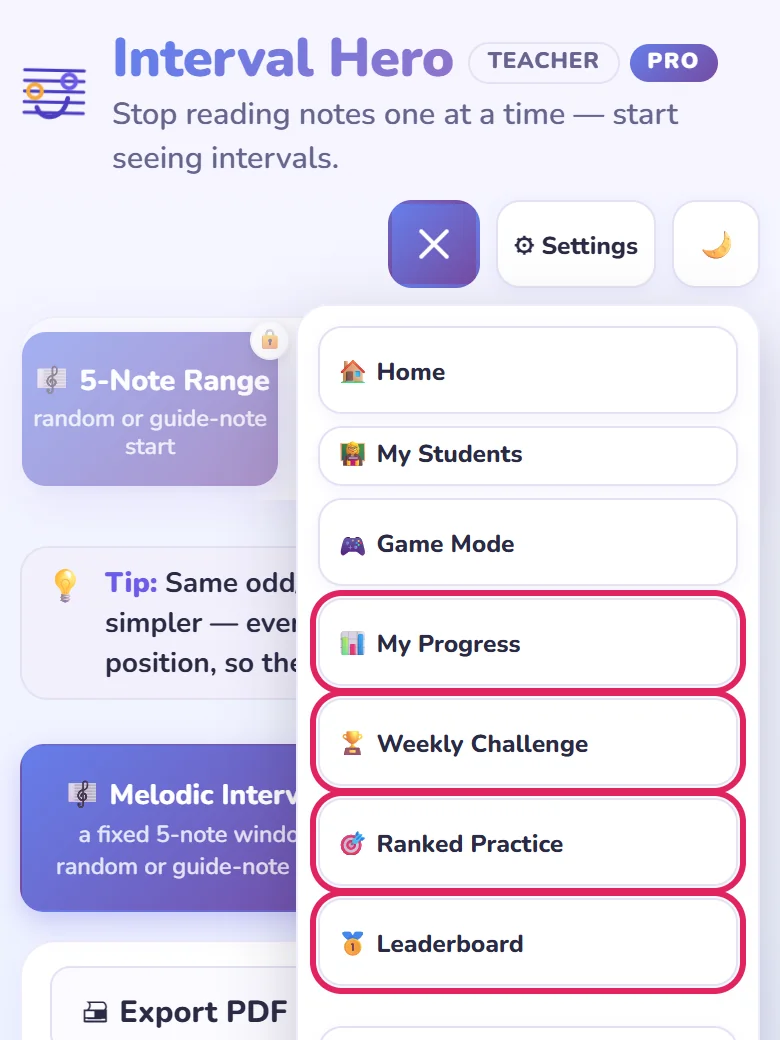
Four things your students will ask about, all under the three-line menu button. Weekly Challenge, Ranked Practice and the Leaderboard need Pro; My Progress is on every account.
Open the menu and the four items sit together, right under Game Mode.
Tap the three-line button at the top right, then any of the four ringed items. A locked item shows a padlock: that account needs Pro.
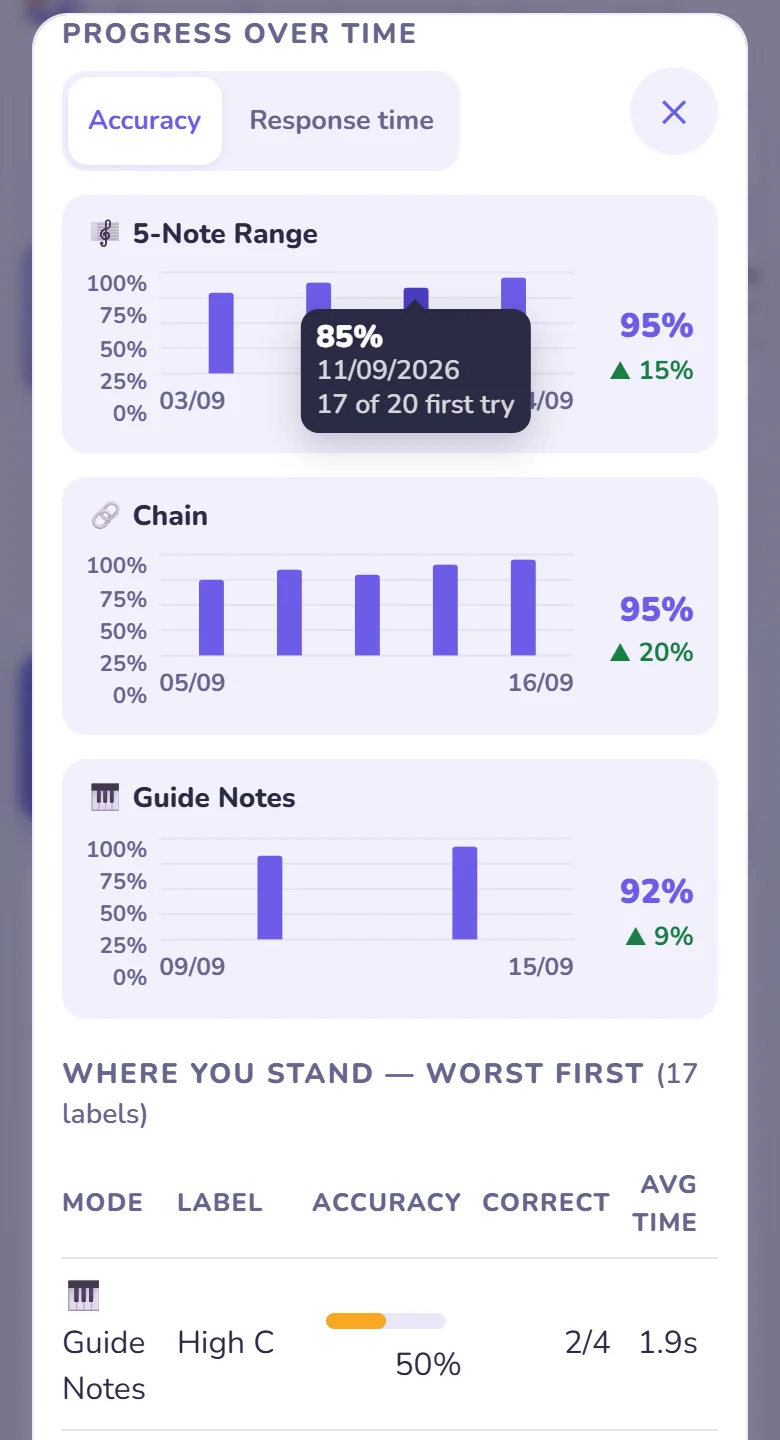
A record of every finished session, updated the moment it ends. Reading Level and the skills breakdown are Pro; the rest is on every account — but it only ever shows your own practice. For a student's, open it together on their device, or read My Students: Last Activity, Checkpoint result and assignment scores.
Six figures: Reading Level out of 10, first-try accuracy, total questions, sessions, day streak and average response time, plus one line of advice on what's next.
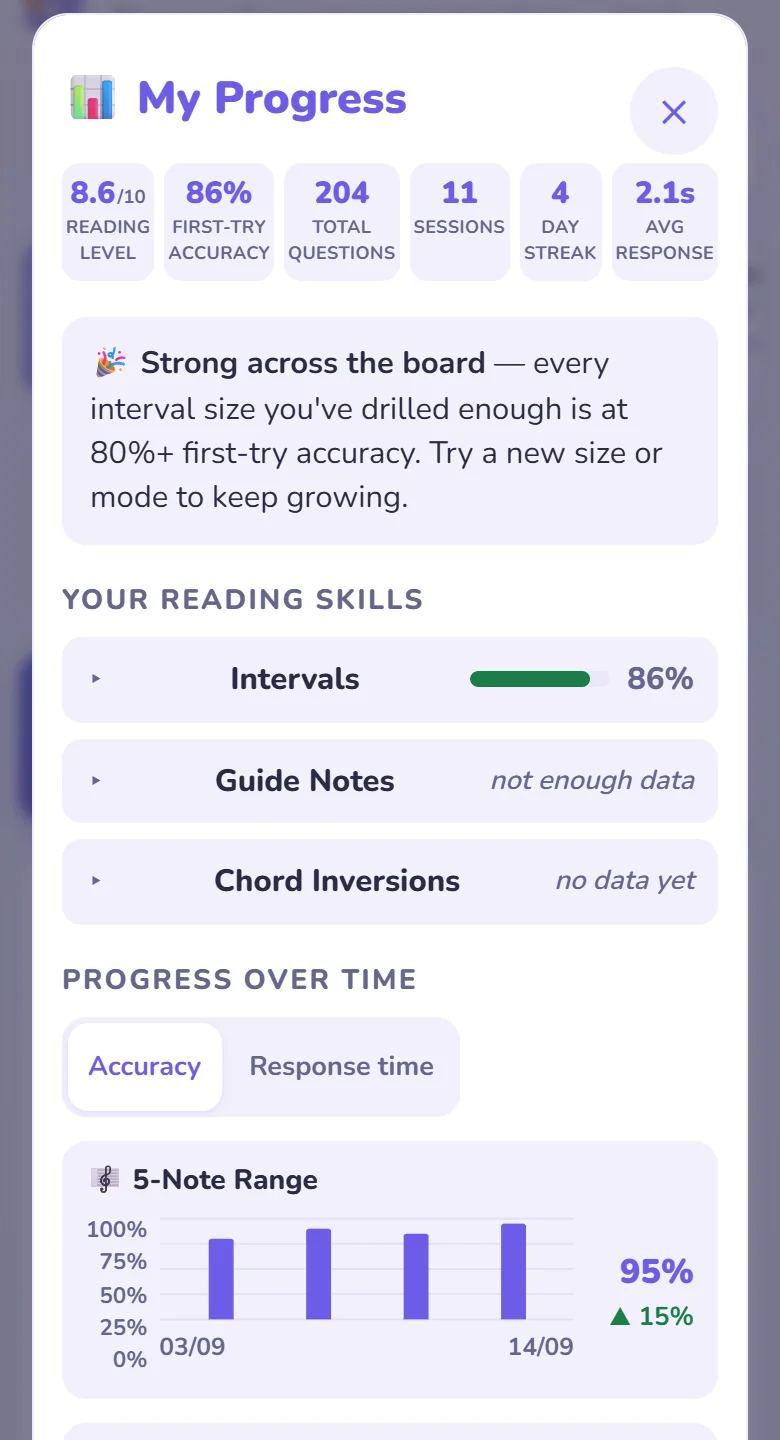
Three groups — Intervals, Guide Notes, Chord Inversions. Tap one for a bar per interval size, landmark or inversion (needs 5+ first-try answers to count).
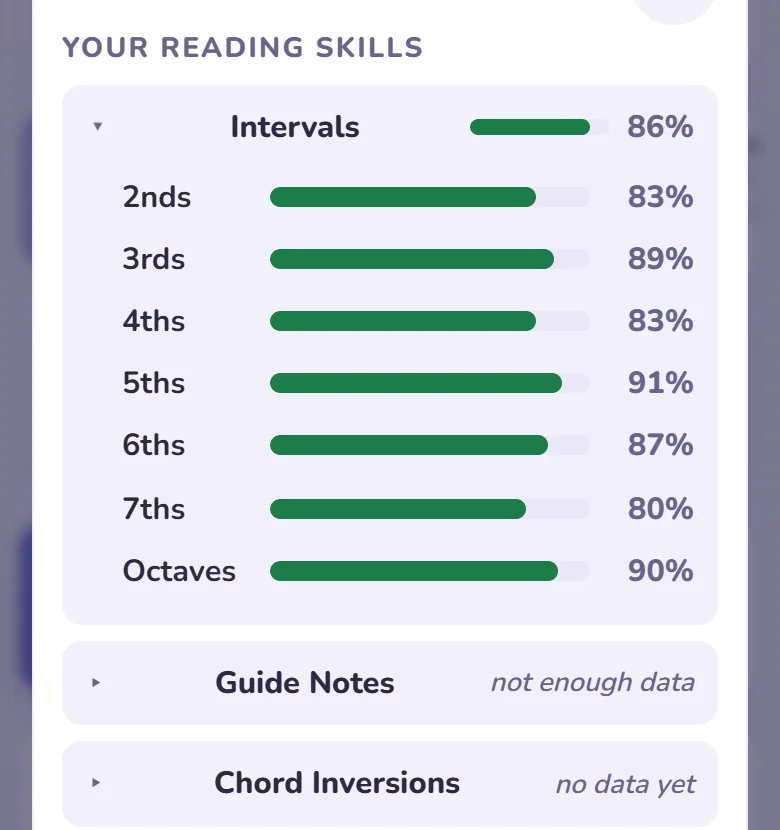
One chart per mode, one bar per practice day, switching between Accuracy, Response time and, once unlocked, ⚡ App score. Tap a bar for the exact figure and date; below is a worst-first table and a day-by-day log.
One fixed, server-graded question set each week, identical for everyone, one attempt Monday to Sunday. The format rotates through four: Sprint (2 minutes, most correct wins), Speed 30 (30 questions, fastest time: a wrong answer adds 5 seconds and, from 12/10/2026, a right one takes 1 second off, shown beside the clock), Sudden Death (first mistake or 10 minutes ends it) and The Full Sweep (40 questions across everything taught).
The first open each week shows this card. Nothing starts until you tap Start — that's your one run for the week.
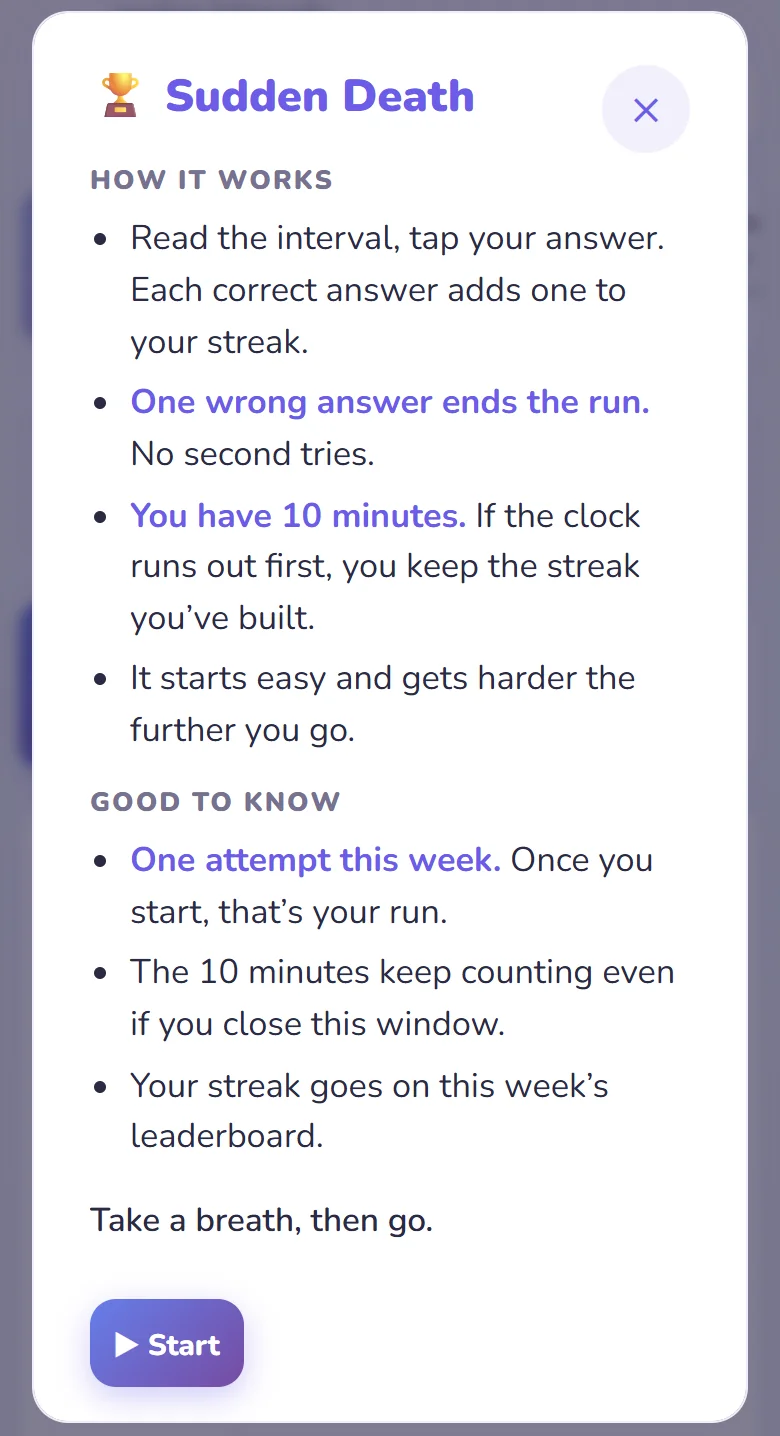
Looks like normal practice, clock/streak/count along the top. Only the first tap counts — no retries here.
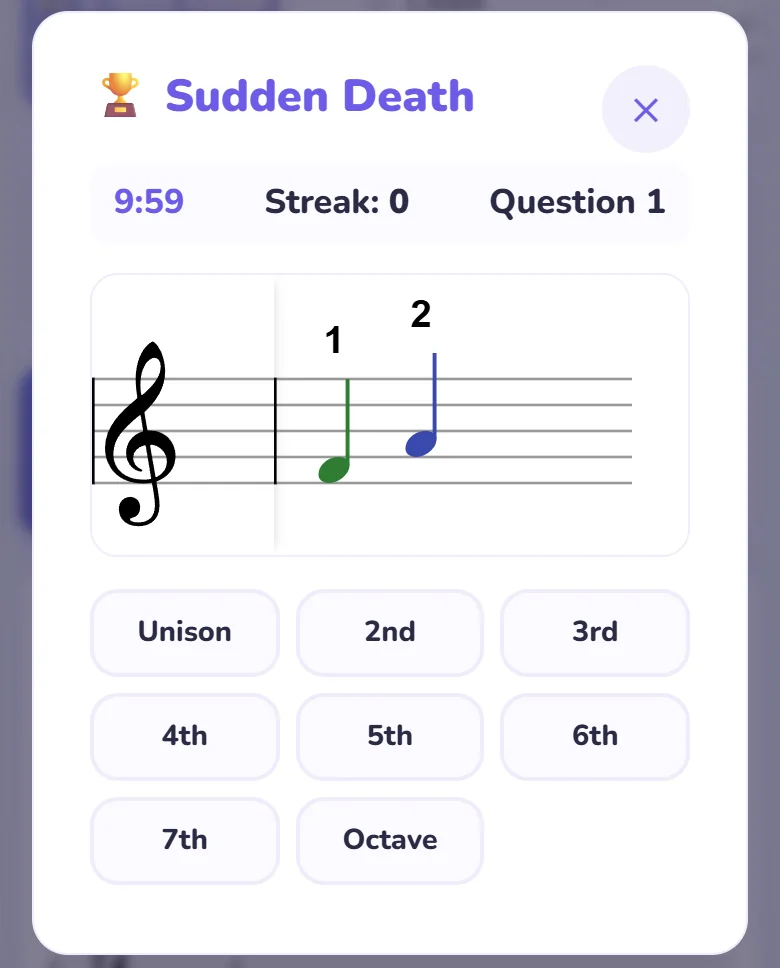
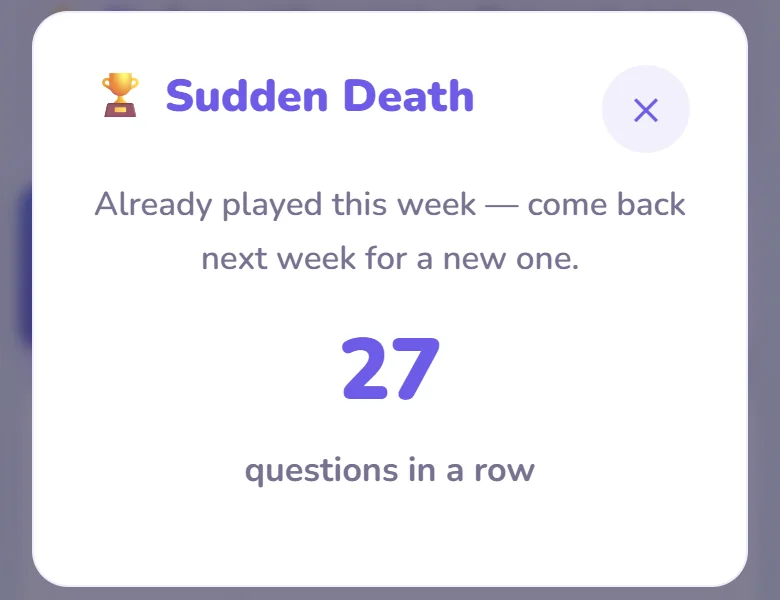
Ask students to play early in the week, not Sunday night. A low Sudden Death streak usually points at one interval size — My Progress shows which.
Ordinary practice that counts: 1 point per correct answer toward the week's leaderboard, plus a bonus for 75%+ or 90%+ sessions. Capped at 60/day, so steady daily practice beats one big cram — the behaviour you want anyway.
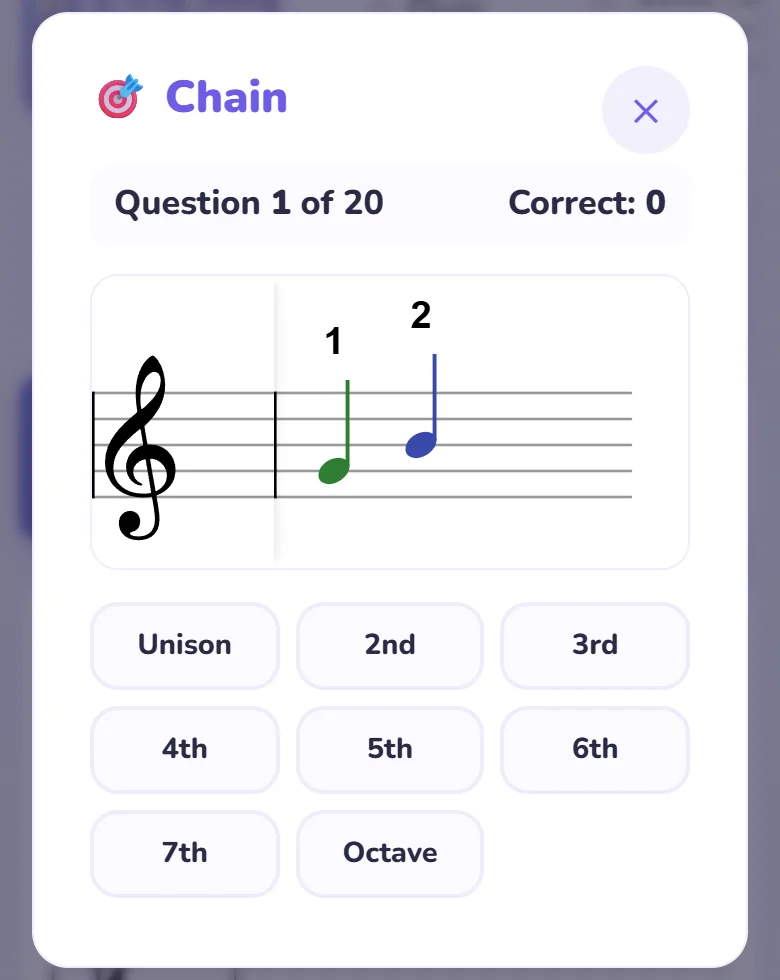
Chain, Guide Notes, Find the Start or Chord Inversions, 20 questions each.
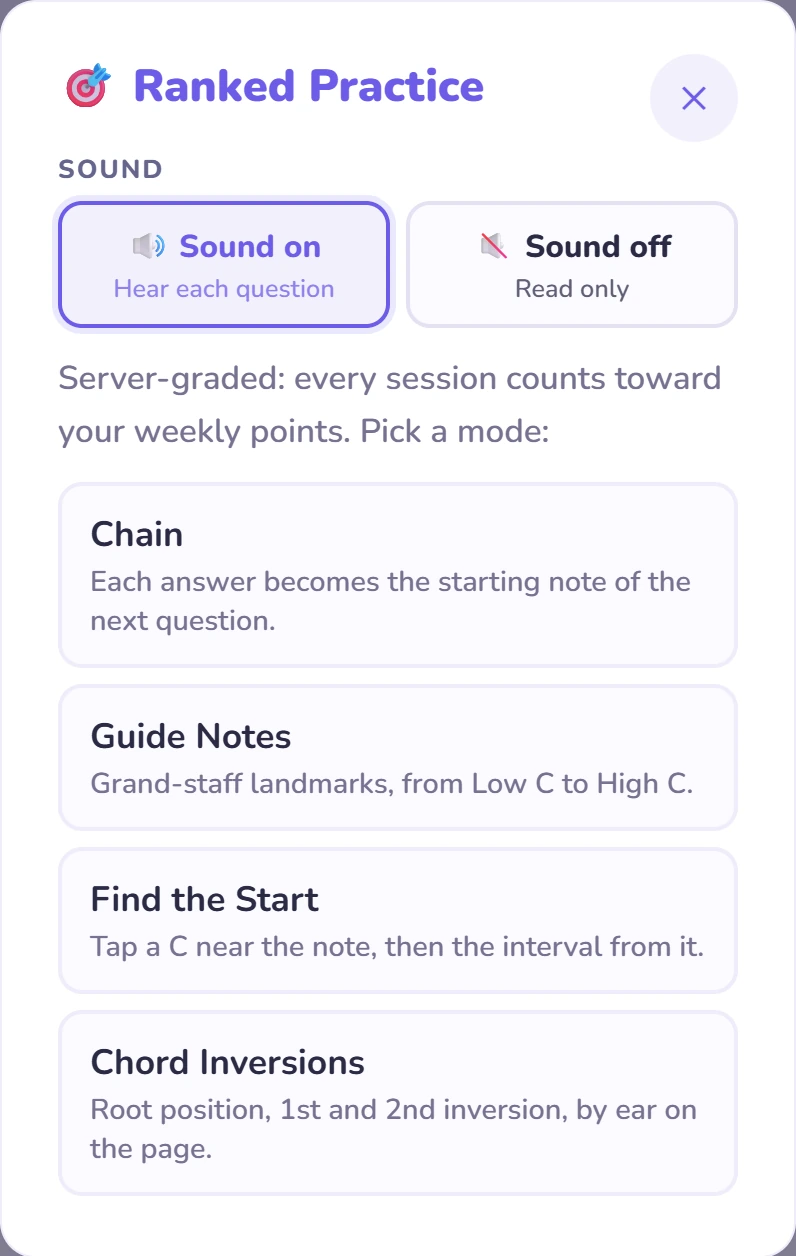
Same screen as the Weekly Challenge. Points bank only when question 20 is answered. Closed early? Pick the same mode again the same day to carry on where you stopped, or tap Resume on Home.
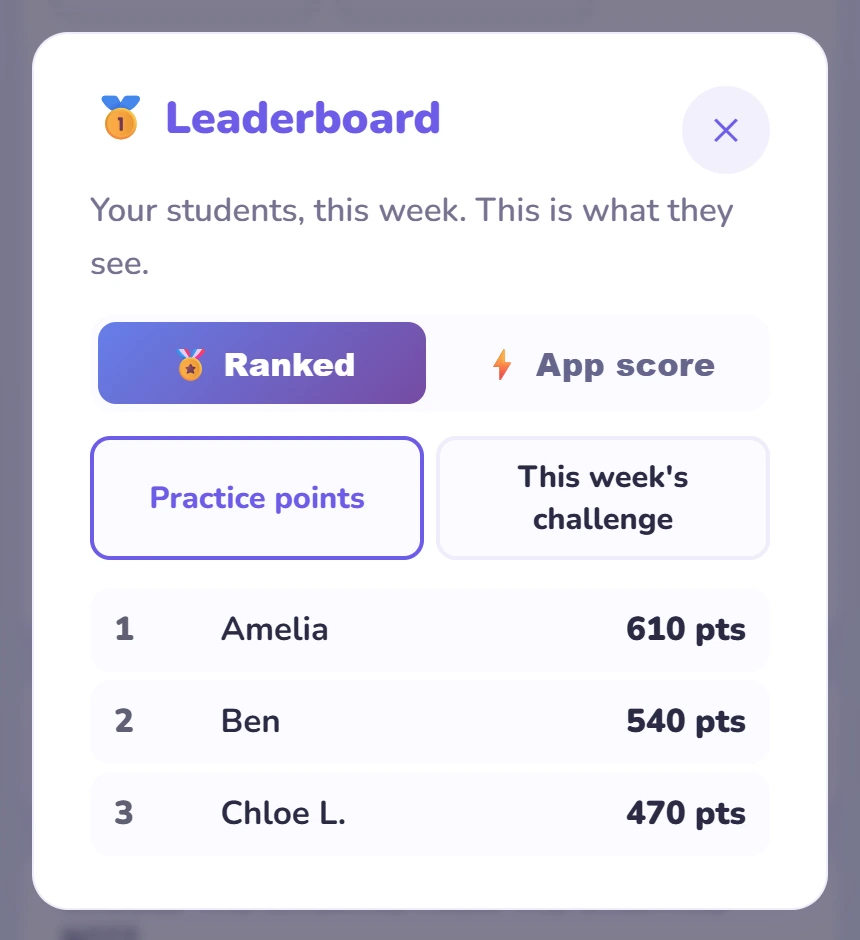
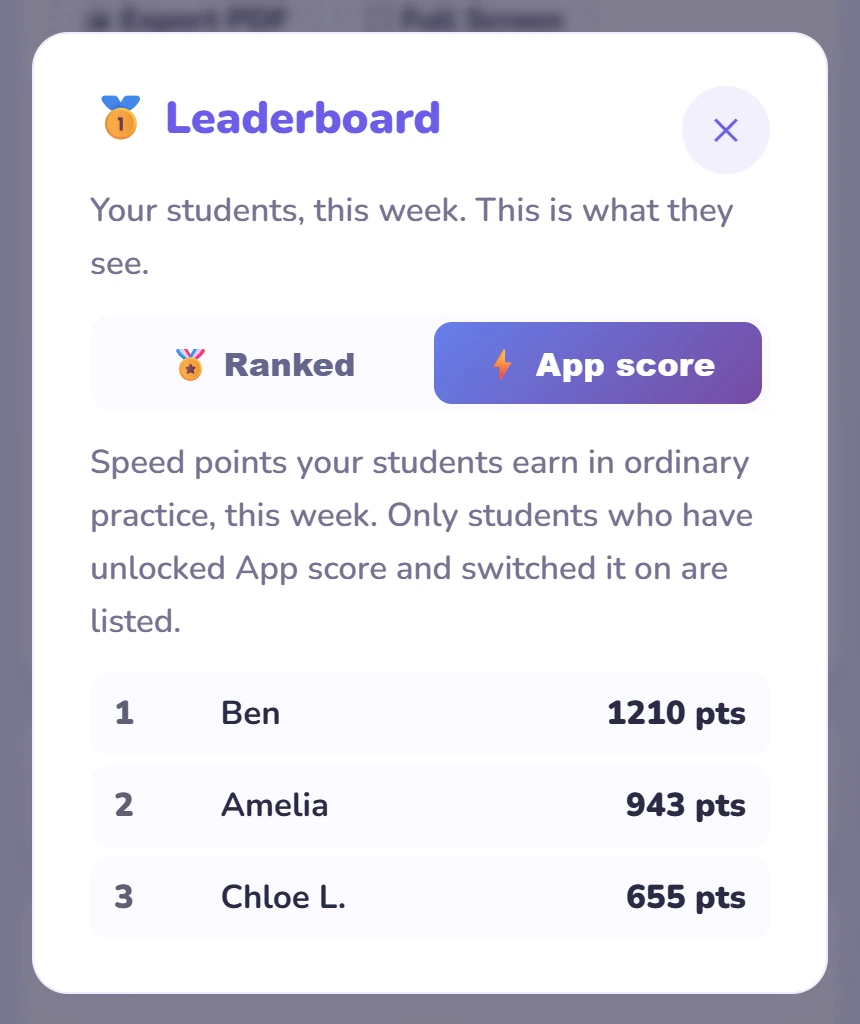
Exactly what your students see, minus the name box: your roster ranked by points or challenge result on the Ranked side, and by App score points on the ⚡ App score side. You're never listed. Needs 4+ scoring players to show a ranking.
The Practice points tab, ranked by this week’s Ranked Practice.
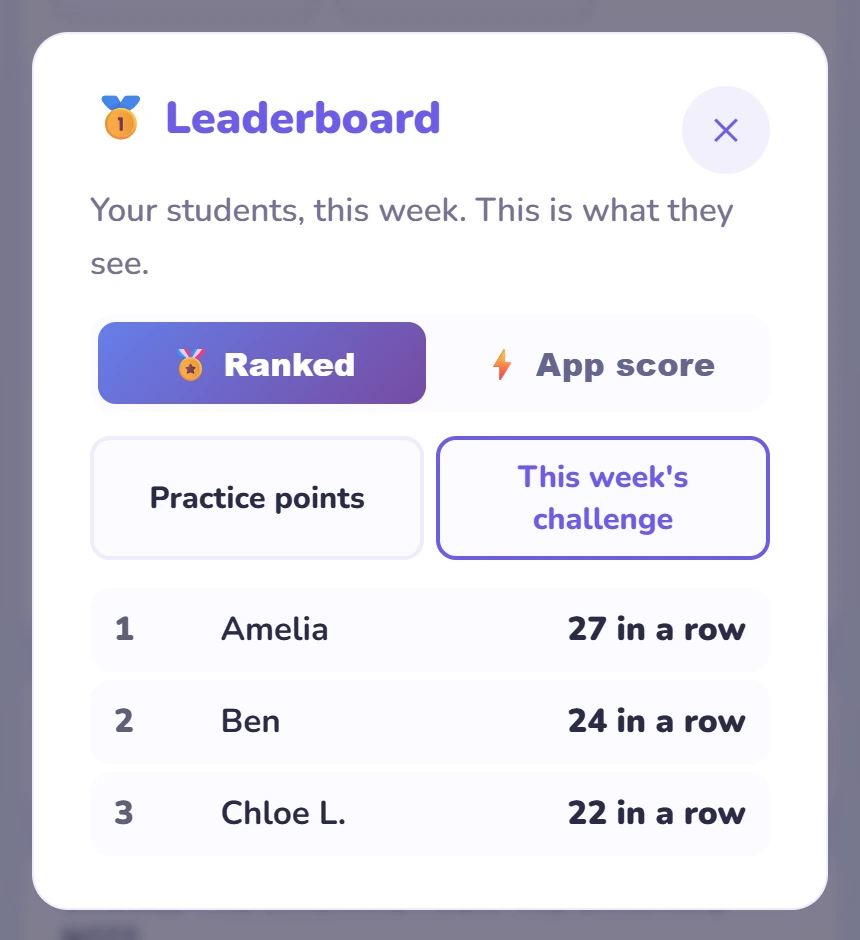
The second tab ranks the Weekly Challenge, in that format’s own units.
A reward for students who have finished the path. It unlocks once a Pro student has passed all seven Game Mode levels, practised 5 hours or answered 2,500 questions, and reached a Reading Level of 8.5. Until then, students see a countdown on Home with a preview of what theyand reached a Reading Level of 8.5. They choose whether to switch it on.
rsquo;ll unlock. Once there, they choose whether to switch it on.A clock runs on every practice question, in the top-left of the staff. A right first answer scores by speed (see the table below, where most modes means 5-Note Range, Chain, Guide Notes and Chord Inversions); a wrong first try or Show Answer scores 0. Checkpoint, the Challenge tab and mistake reviews never score.
Their points beside the timer, a session total, this week against last week on Home, an App score tab in My Progress, and their best session per mode, kept each week.
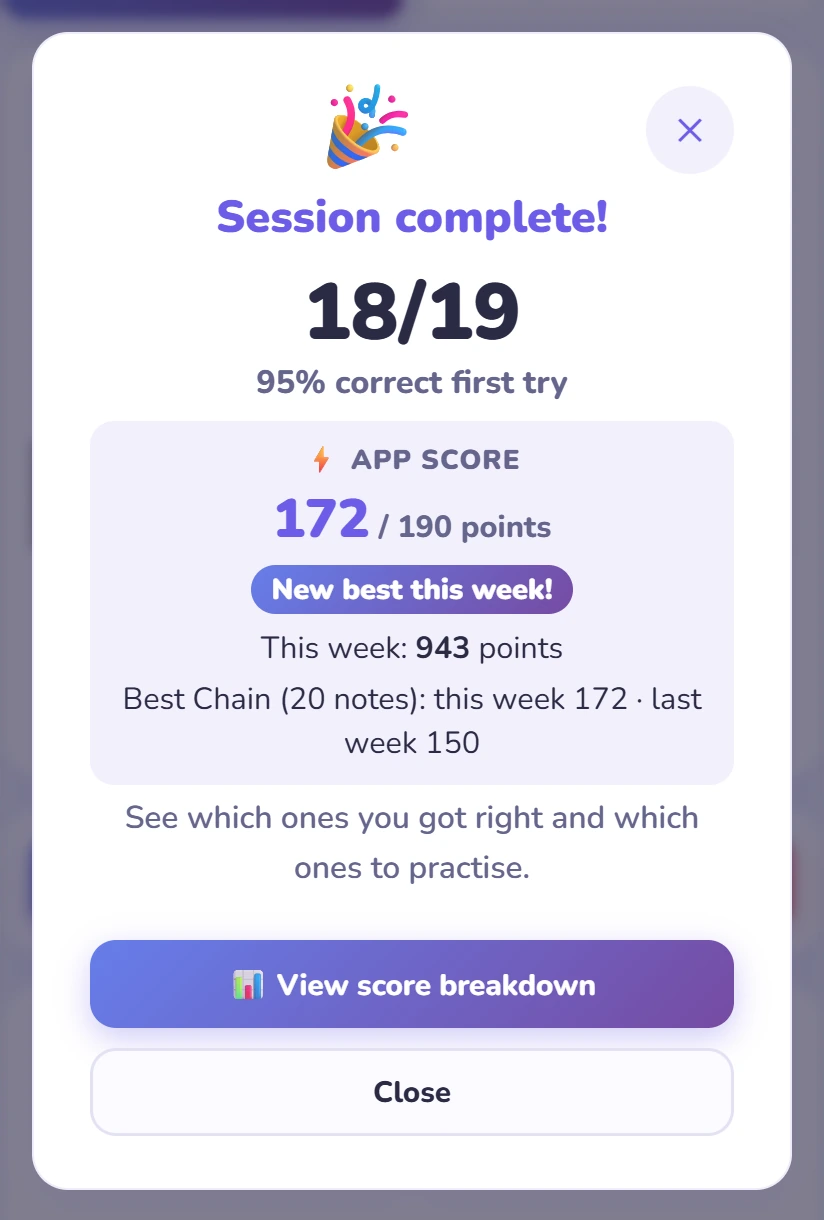
The Leaderboard’s ⚡ App score side ranks your studio on this week’s points, with the same name rules as the Ranked side. Only students who have switched it on are listed.
| Most modes | Play the Note | Find the Start | |
|---|---|---|---|
| Full marks | 10 under 2 s | 20 under 3 s | 20 under 7 s |
| Then | 1 less each second | 2 less each second | 2 less each second |
| Nothing from | 11 s | 12 s | 14 s |
Students land on Home after signing in. Worth a look together in the first lesson.
Big buttons for Practice, Game Mode, My Progress and Assignments, and a ring that fills toward a daily goal of 10, 20, 30 or 40 questions.
Badges at 3, 7, 14, 30, 50, 100, 200 and 365 days in a row, and a Daily Quest: the next Game Mode level, then two tasks from their weakest areas.
Students who tap Enable notifications on their account page get a reminder at 6pm their time on days they haven’t practised, to keep their streak going, and a push the moment you assign something. On iPhone or iPad they add Interval Hero to the Home Screen first.
Two ways the app sums up progress over the long run: a Checkpoint measures it on a given day, a rank tracks it continuously.
A short mixed assessment the app schedules automatically: 50 questions in 18 minutes, one attempt, drawn from the three skills that matter most for reading at the piano. Pro-only, not pass-or-fail, and the score comes straight to your roster — think of it as a term test the app sets for you.
When one comes up. The first unlocks once a sub-level is passed in each of Guide Notes, Play the Note and Chord Inversions. After that, every 5 further sub-levels — or every 5 sessions once Game Mode is finished. Questions are always set at the hardest sub-level passed, so it's always on material actually learned.
Appears on Home when a Checkpoint becomes available. Let me practice more puts it off with no penalty.
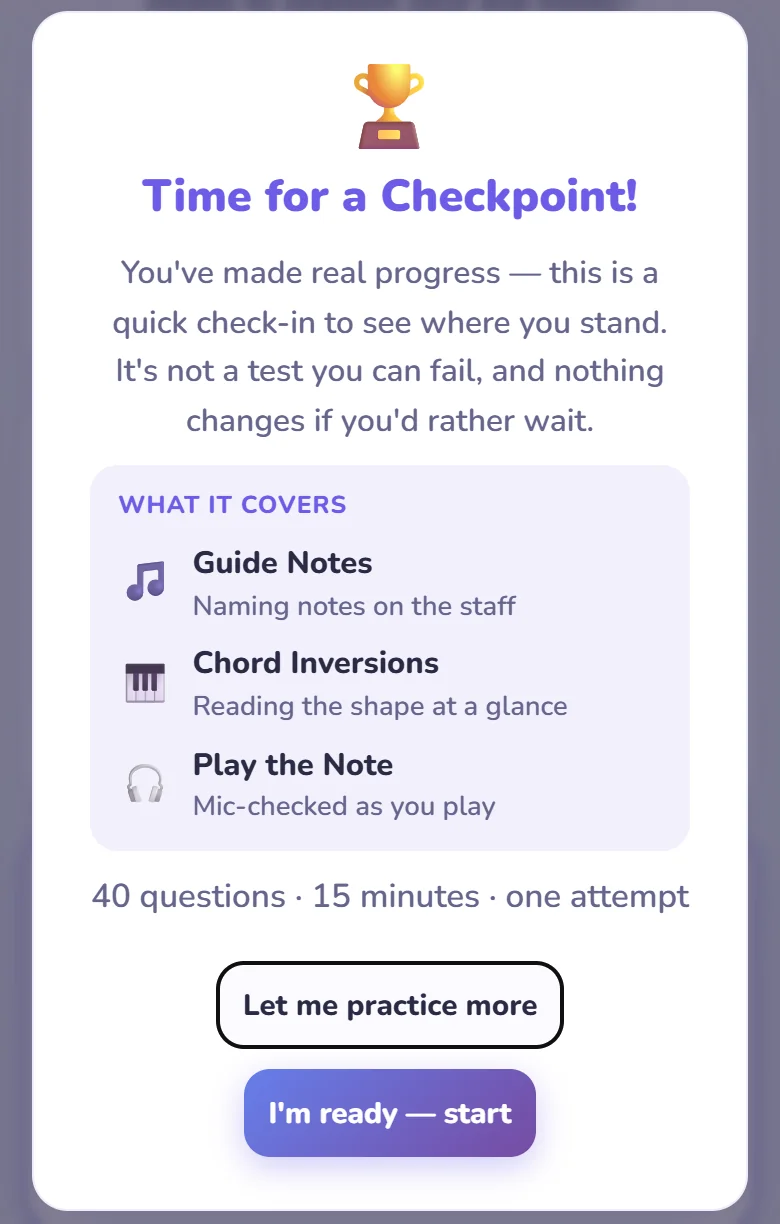
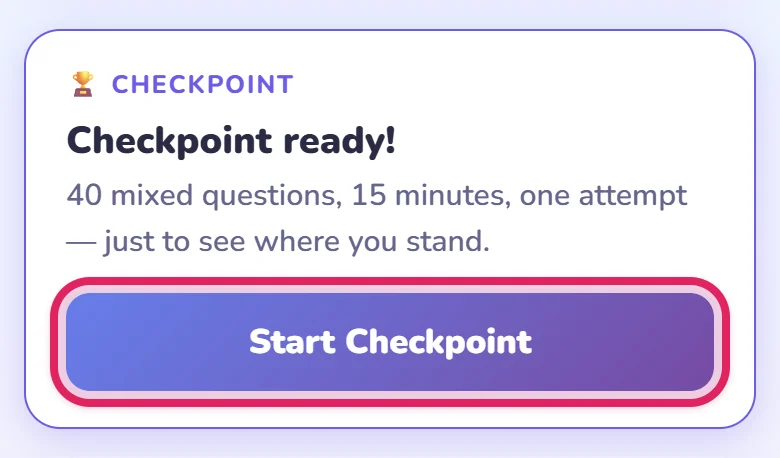
Shows what's needed before the first one, or how long until the next. When ready, tap Start Checkpoint.
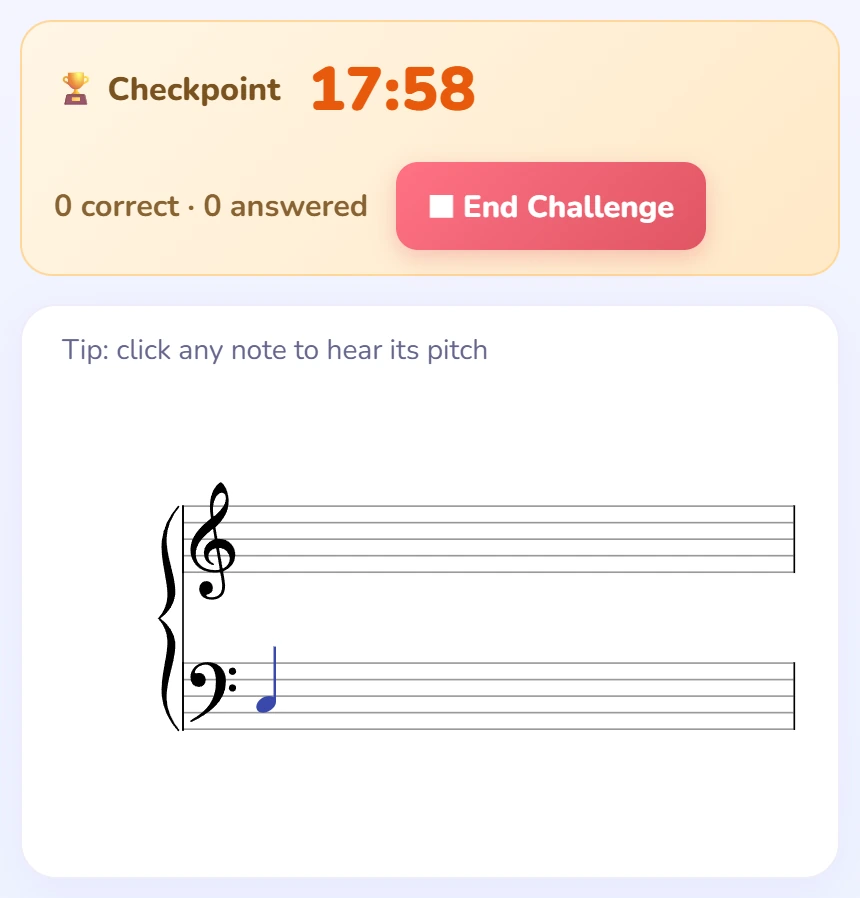
13 Guide Notes, 10 Find the Start, 13 Chord Inversions, then 14 Play the Note questions, one 18-minute clock. Each section starts on a clean staff, the numbering carries on, and the question you’re on is the blue note. Only the first answer counts, and the score is kept whether time runs out or not.
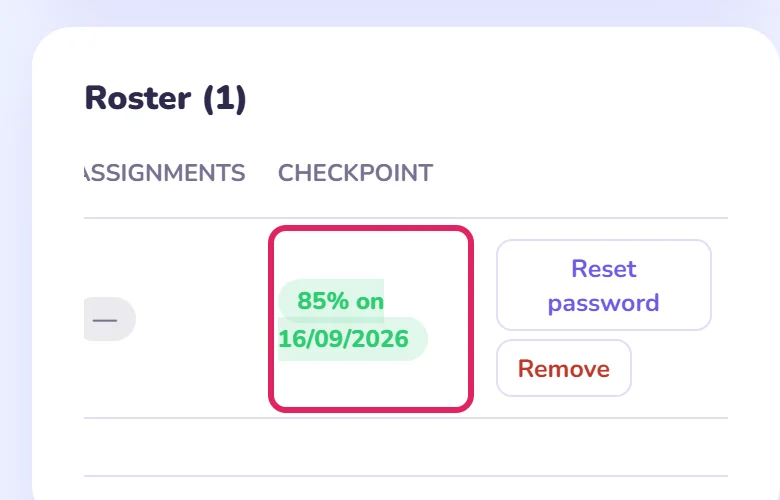
The roster’s Checkpoint column: latest score and date, green from 80%, amber from 50%, red below. Compare with My Progress to see which skill dragged the score down.
Every account has a rank, from 🌱 Interval Rookie to 👑 Interval Maestro — a live standing, not a trophy, recalculated from lifetime accuracy, questions answered and streak, so it can drop as well as climb. Unlocks once Levels 1–3 are passed.
| Rank | First-try accuracy | Questions answered | Day streak | Also needs |
|---|---|---|---|---|
| 🌱 Interval Rookie | Game Mode Levels 1 to 3 passed | |||
| 🎯 Interval Apprentice | 75% | 100 | 2 days | |
| 🎼 Interval Adept | 82% | 300 | 4 days | |
| 🏅 Interval Virtuoso | 88% | 750 | 7 days | All 7 Game Mode levels (Pro) |
| 👑 Interval Maestro | 93% | 1,500 | 14 days | All 7 Game Mode levels (Pro) |
Sits in the header next to the app name once unlocked. Tap it to open the ladder.
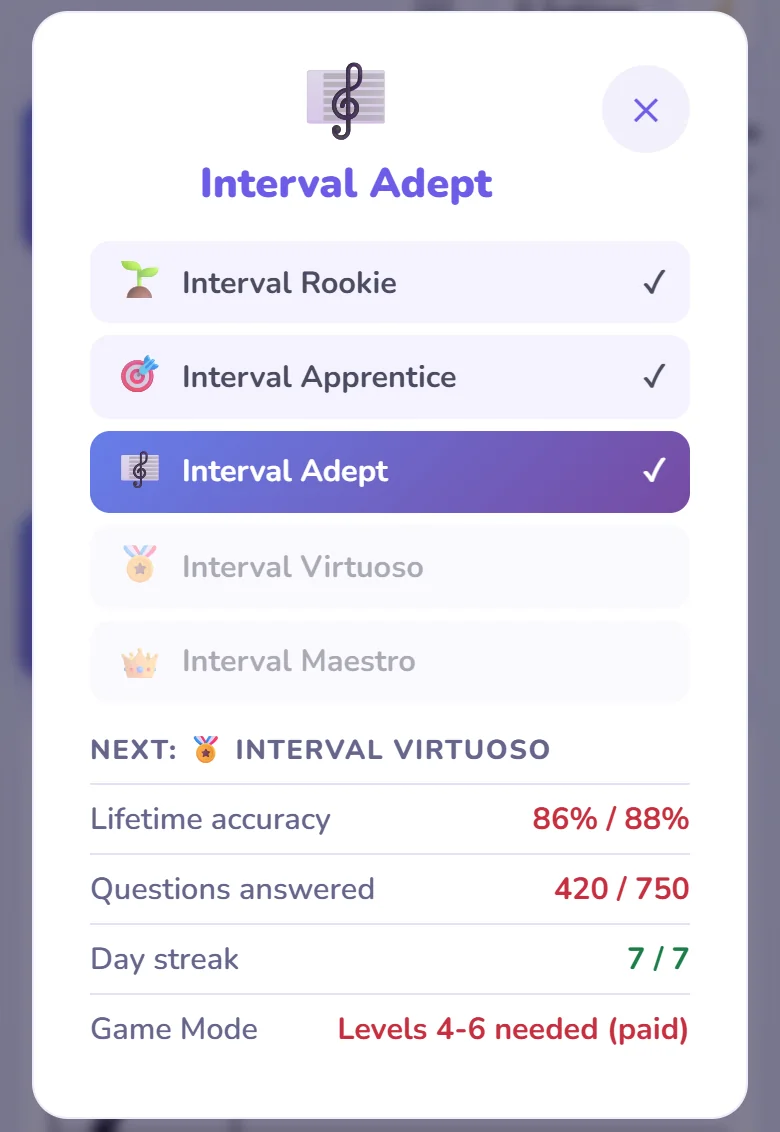
All five tiers, current one highlighted, with the exact numbers still needed for the next: green if met, red if not.
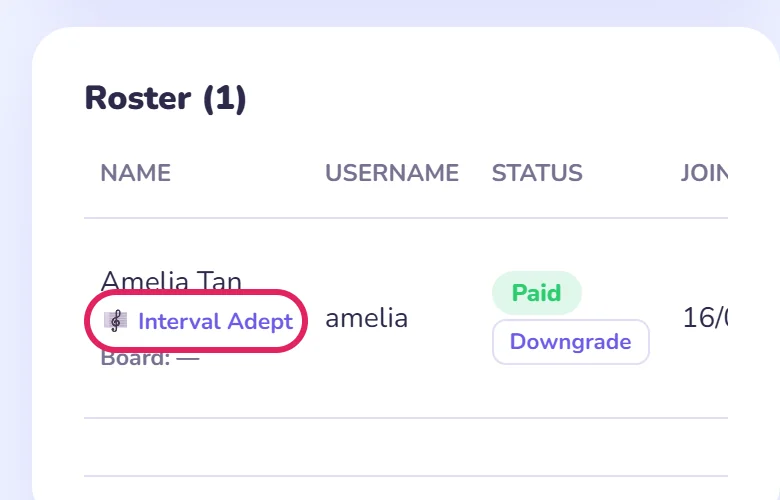
Each student’s rank sits under their name on My Students — who's climbing, who's stalled, at a glance.
One panel to shape a session to the student in front of you — clef, interval width, direction, length — showing only what the open mode needs. Changes wait for Apply, and nothing here is saved between visits; for a focus you want to stick, send an assignment instead.
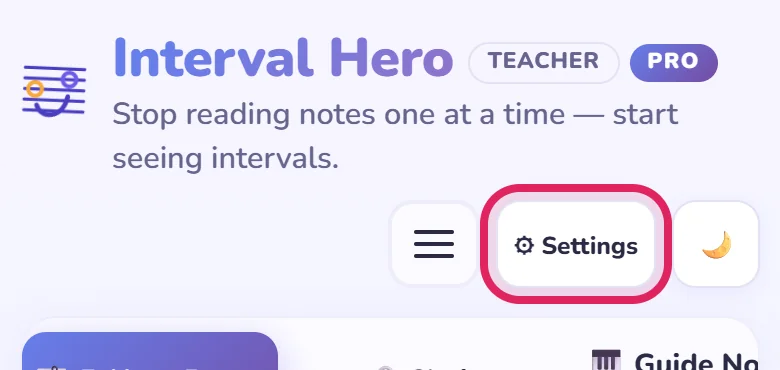
Tap Settings in the header, between the menu button and the theme toggle. Tap again, or anywhere outside, to close it — or press S on a keyboard.
Always in the header, in every mode. It lights up while the panel is open.
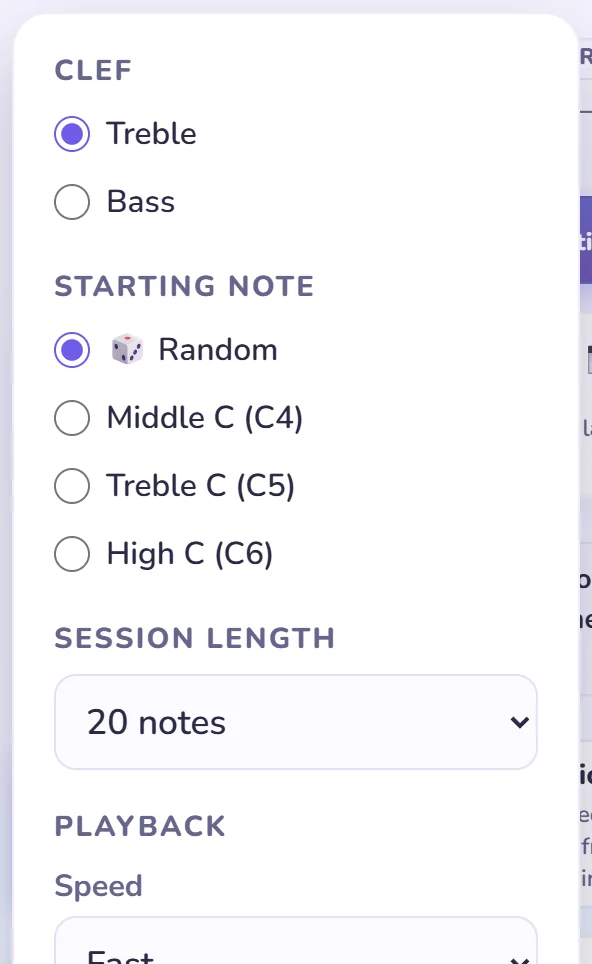
The top changes per mode; Playback, Difficulty and Display at the bottom stay the same everywhere.
Clef: treble or bass. Starting Note: Random or a fixed landmark. Session Length: 10, 20, 50 or Unlimited.
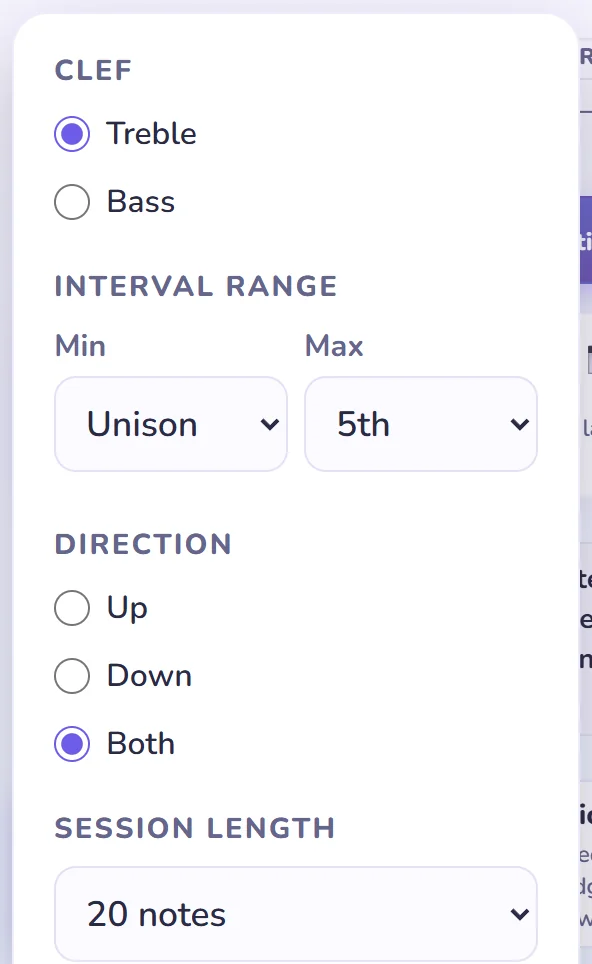
Interval Range sets the smallest/largest interval (default Unison–5th); Direction limits jumps to Up, Down or Both. Same two controls apply in Play the Note when using Chain.
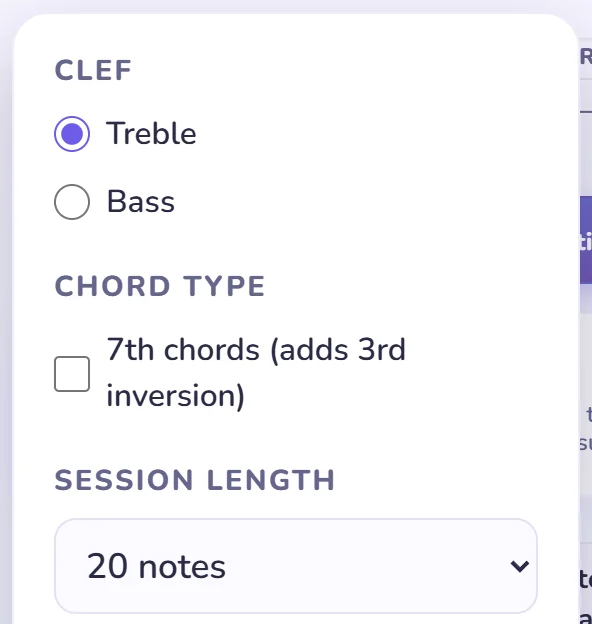
Chord Type switches triads to 7th chords (adds a 3rd inversion). Guide Notes has no controls of its own beyond Session Length.
Playback: untick Play sound to silence auto-play and the ▶ button — clicking a note on the staff still plays it, since that's a deliberate check, not the app giving away the answer. Difficulty: Adaptive asks more of the sizes a student gets wrong most. Display: untick Show notes on staff to answer from sound alone (needs Play sound on) — a reading drill becomes ear training.
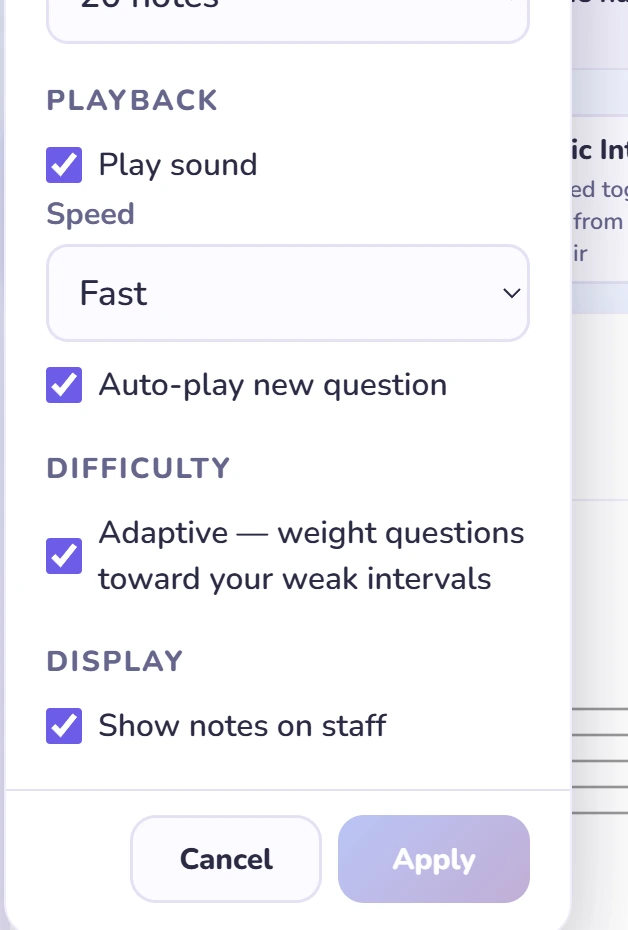
A changed control doesn't take effect until Apply, which only lights up once something's changed.
Tap Apply: the panel closes and a fresh session starts on the new settings. On Challenge, Apply just sets the values — press Start when ready.
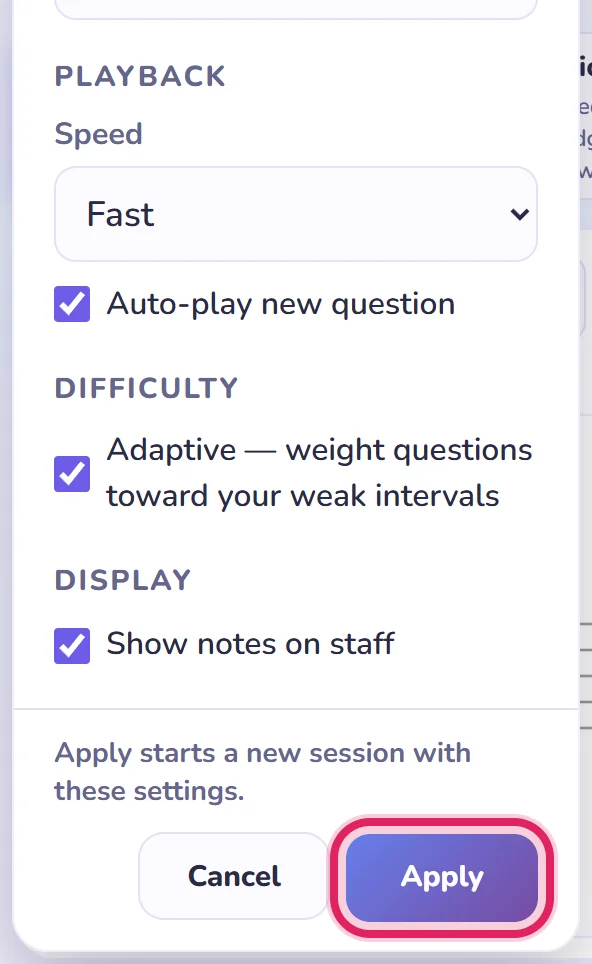
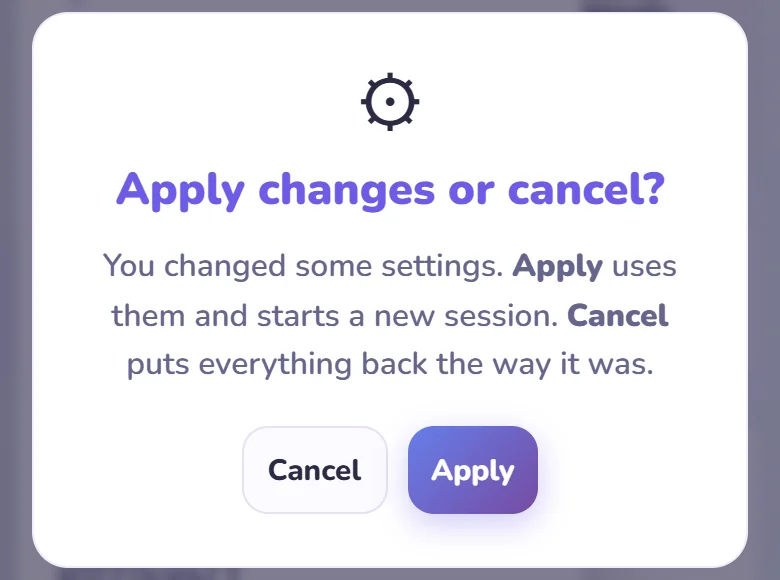
Reverts every control and leaves the current session untouched. Tapping outside with unapplied changes asks first, so a stray tap can't lose or apply them by accident.
During a timed run (Challenge or Checkpoint), Apply stays off until you finish or end it.
Start with the simple checks. Test microphone problems together in a lesson.
It's My Students — you land there automatically on login. Or bookmark game.interval-hero.app/teacher-dashboard.html.
My Students → Roster → tap Upgrade next to their Free badge; Downgrade takes the seat back. Teacher Pro includes 3 seats, more via Change seats. A student's own subscription doesn't use one of yours.
For quiet or high notes, try a firmer touch. MIDI works too, for compatible keyboards.
Release the pedal and let the previous sound fade; check the octave as well as the note name. For Chord Inversions, roll the chord bottom-up so the app hears each note.
With Teacher Pro active, reset it from your roster. With an email on their account, they can also use Forgot your password? themselves.
No — give each their own; a shared account mixes progress, ranks and assignments. Free accounts are available.
No. Start free with Levels 1–3; grant a seat when they're ready for Level 4 or need ongoing Play the Note/Chord Inversions. See Free and Pro above.
Access continues until the paid period ends, then granted seats return to Free and your dashboard goes read-only. Students keep their progress and any subscription they bought themselves.
If the message mentions Fortinet, a school or office firewall is inspecting web traffic and Chrome refuses to trust it. This is not the app, and every secure site on that network is affected. Switch to mobile data or home Wi-Fi, or ask IT to allow interval-hero.app. Avoid tapping Advanced and proceeding: that lets the firewall read your login.